
How to set up the VS Code GoEasyERP extension
Write a GoEasyERP extension app in VS Code and publish it to GoEasyERP running in a local Docker container. An extension app adds tables, pages, fields, buttons, menu entries, texts and Go business logic without changing the base application.
Requirements
- Visual Studio Code 1.136 or newer.
- Docker: Docker Desktop on Windows and macOS, Docker Engine with Compose on Linux.
- On Windows: Docker Desktop with WSL 2, running Linux containers.
- Go is not needed: the extension provides it.
Visit the GoEasyERP extension page on the Visual Studio Marketplace on this link.
1. Install
Open the Extensions view (Ctrl+Shift+X), search for GoEasyERP, publisher ERP Development AS, and choose Install. The Go and YAML extensions are installed with it. The extension is also on the Marketplace.
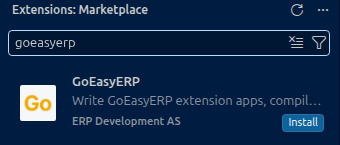
2. Create an app
Open the Command Palette (Ctrl+Shift+P) and run GoEasyERP: New App.
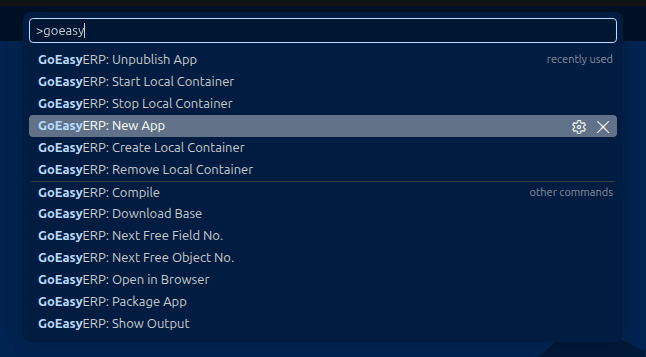
Enter the app's name,

its publisher,

a web address or e-mail address to reach the publisher, and a prefix: 2 to 10 lower case letters and digits, starting with a letter.

Remember your prefix: the app's field names must start with it. In this guide the prefix is ma, so the field is named ma_description.
Then choose the folder to create the app in. Open the new folder and trust it.
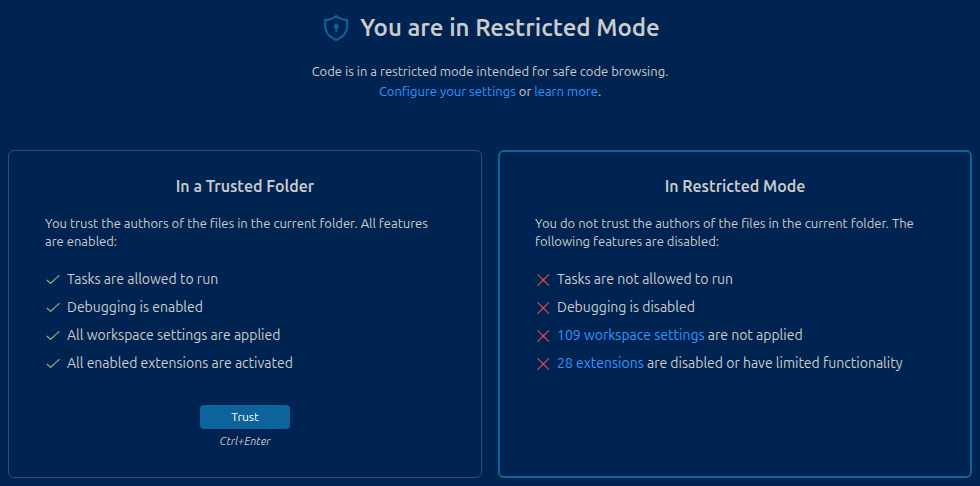
Accept Download Base, which gives you code completion.

3. Create a local development container
In the Command Palette, run GoEasyERP: Create Local Container.
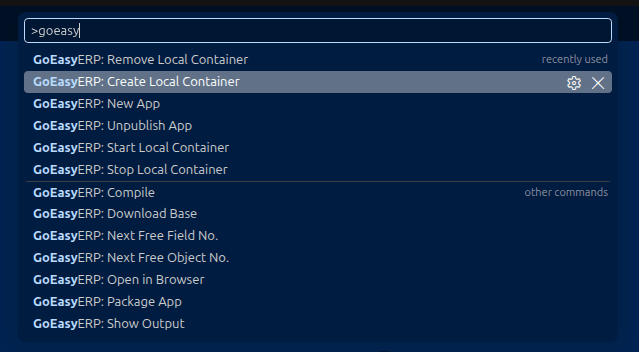
Choose the base version (the newest is proposed)
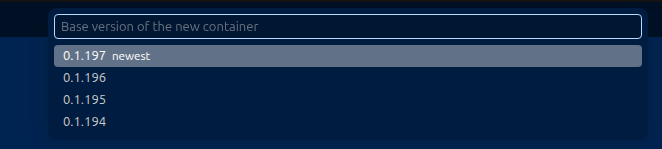
and the port (8080 is proposed).

Enter a password for the user ADMIN twice. It needs at least 10 characters and must not contain “admin”; common passwords are refused. The password is kept in VS Code's secret storage.

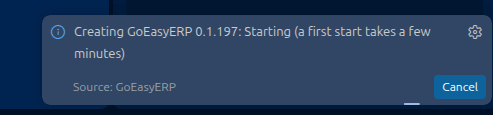
The first start takes a few minutes.

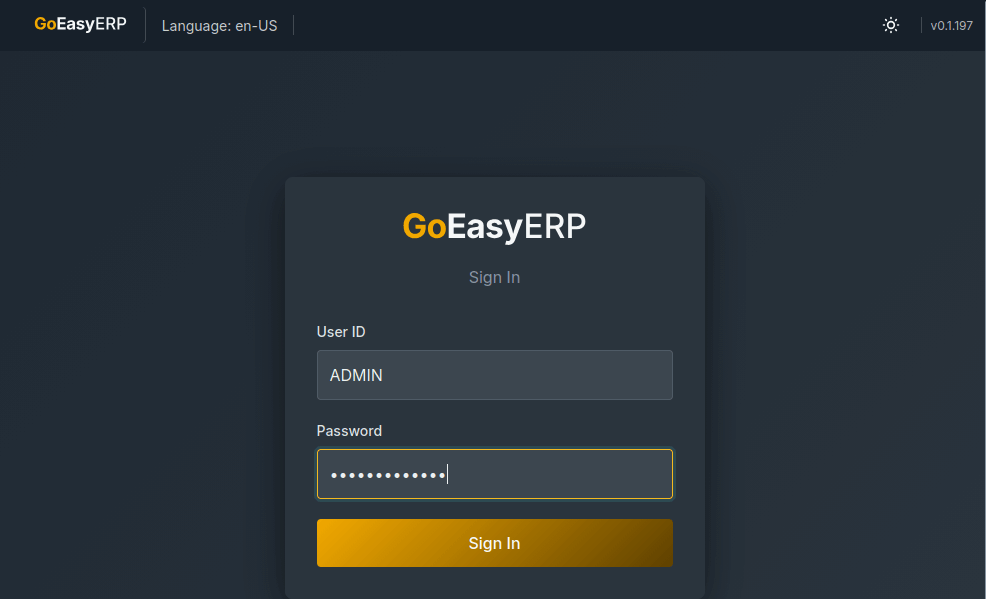
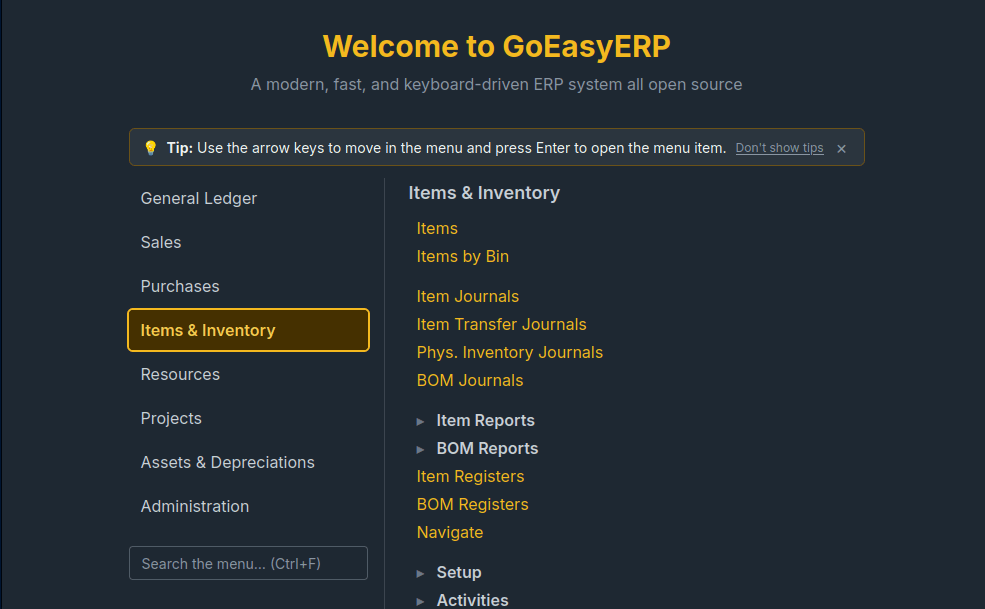
Open http://localhost:8080 (or the port you chose) and sign in as ADMIN.
4. Add a field to the Customer table
New apps have these folders:
| Folder | Holds |
|---|---|
tables/ | Fields on base tables |
pages/ | Fields, sections and buttons on base pages |
menus/ | Main menu entries |
custom/tables/, custom/pages/ | The app's own tables and pages |
translations/<language>/ | The app's texts |
Create the table extension with the snippet ge-tableext (Ctrl+Space).
Remember your prefix: the app's field names must start with it. In this guide the prefix is ma, so the field is named ma_description. Use your own prefix in name and db_name, and the same name in the page file.
tables/18-customer.extend.yaml
extends_table: 18
fields:
  - name: ma_description
    no: 50000
    type: types.Text
    db_name: ma_description
    length: 100
    caption: Description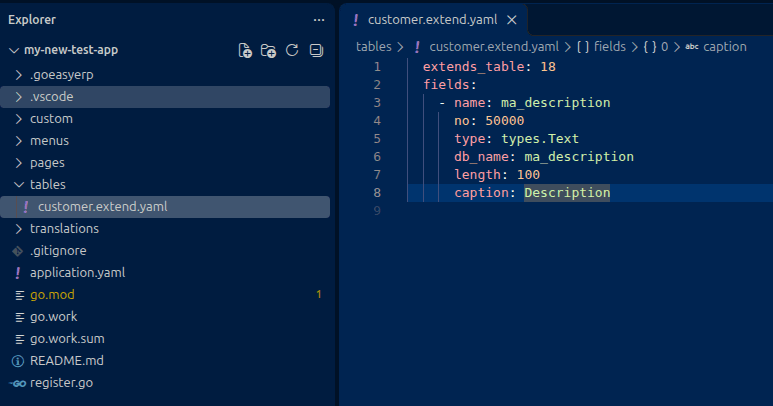
Then show the field on the Customer Card:
pages/21-customer-card.extend.yaml
extends: 21
layout:
  sections:
    - name: General
      fields:
        - source: ma_description
          after: name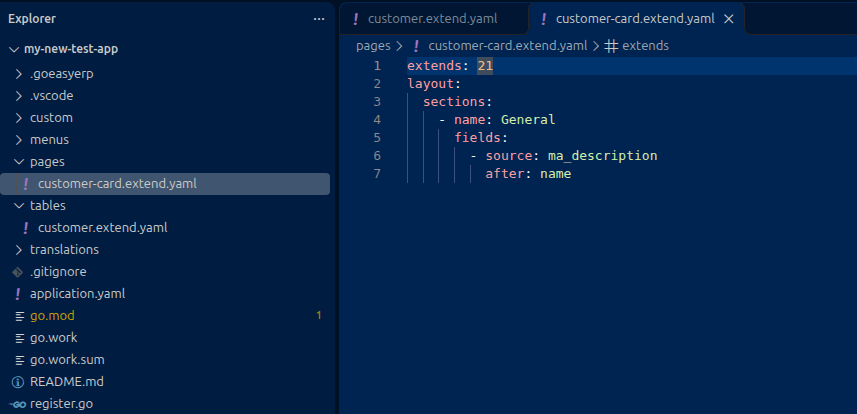
Each field needs a number of the app's series that no other field uses (GoEasyERP: Next Free Field No.).
5. Publish
Press F5 (Ctrl+F5: without opening the browser). The extension compiles the app, publishes it, shows the build log and opens the browser.

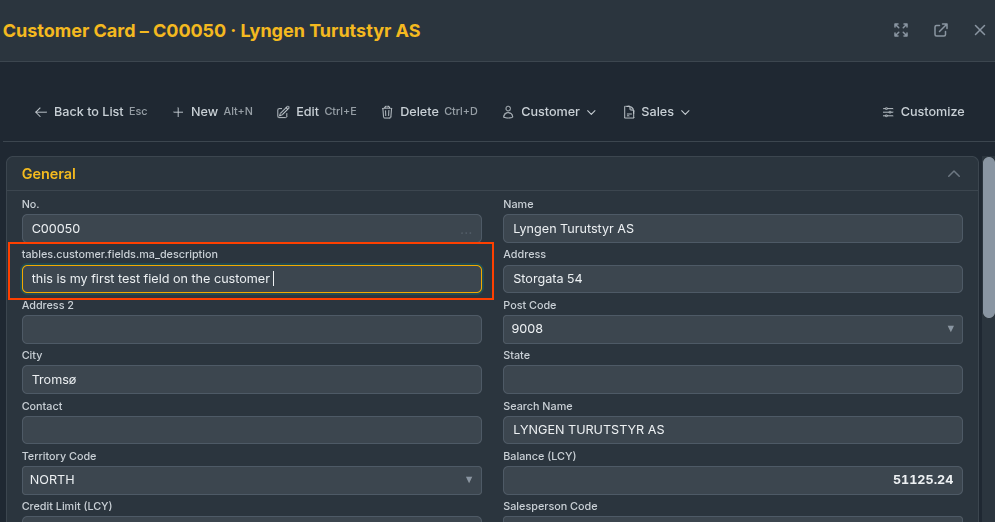
The field is on the Customer Card. The first publish takes a few minutes; later changes of the app's code are typically live in about half a minute. F5 publishes to development servers only.
6. A table of your own
custom/tables/50000-group.yaml: snippetge-table.custom/pages/50000-groups.yaml: snippetge-list;source_tableis the table's name.menus/admin.extend.yaml: snippetge-menu;page_idis the list page'sid.- F5, then open Sales in the main menu.
Other commands
| Command or key | Does |
|---|---|
| Ctrl+Shift+B | Compiles and checks the app; publishes nothing |
| GoEasyERP: Unpublish App | Removes the app from the development server |
| GoEasyERP: Package App | Writes the app's .zip for an installation |
| GoEasyERP: Stop / Start Local Container | Stops and starts the container |
| GoEasyERP: Remove Local Container | Removes it and deletes its database |
| GoEasyERP: Show Output | The extension's log |
Troubleshooting
- A snippet is not offered: the file is in another folder than the snippet belongs to (
ge-tableneedscustom/tables/,ge-tableextneedstables/). - Docker cannot be reached: start Docker, and check that your user may use it.
- Anything else: GoEasyERP: Show Output, and report it on GitHub.